What The Tech: How to disable Face ID on your phone
BY JAMEY TUCKER, Consumer Technology Reporter
Most of us unlock our phones dozens of times a day. A quick glance. A tap of a fingerprint. Done. It is fast, convenient, and usually perfectly safe.
But there is an important difference between unlocking your phone with biometrics and unlocking it with a passcode.
In many court cases, biometric unlocking has been treated differently than a passcode. A fingerprint or Face ID may be considered physical evidence. A passcode may be treated as testimony because it comes from your memory. That distinction can matter in certain legal situations.
Regardless of the legal angle, there are also practical reasons to understand how your phone’s security works. What many people do not realize is that you can temporarily disable biometric unlocking and require a passcode instead. It only takes a couple of seconds.
How to Require a Passcode on an iPhone
On an iPhone, press and hold the side button and either volume button at the same time. Keep holding until the power screen appears. Then tap Cancel.
You do not have to power off the phone. Once that screen appears, Face ID or Touch ID is disabled. The next time the phone unlocks, it will require your passcode.
How to Require a Passcode on Android
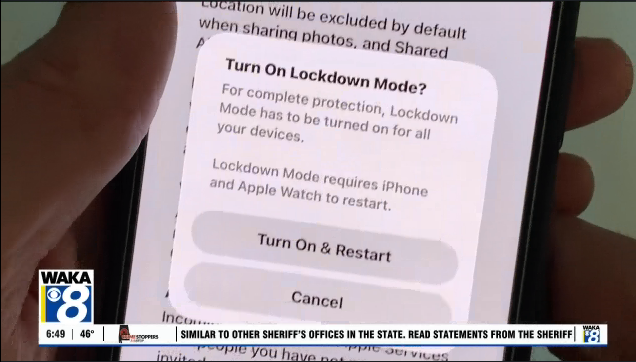
On most Android phones, including Google Pixel and Samsung Galaxy devices, press and hold the power button. You will see an option called Lockdown. Tap it.
When Lockdown is enabled, fingerprint and face unlock are disabled. The phone will require your PIN, pattern, or password to unlock. This may be different for different Android phones.
Some require both volume and power buttons to be pressed. Some Android versions will turn on lockdown by holding down just the power button.
Why This Matters
This feature is not about avoiding law enforcement or doing anything wrong. It is about understanding and controlling how your phone unlocks.
You might choose to use this in a crowded environment. At a concert. At a game. Anytime you are around people you do not know well. If someone were to grab your phone, biometric unlock could potentially be triggered quickly.
Requiring a passcode adds an extra layer of intentional control.
We spend a lot of time worrying about strong passwords for websites and online accounts.
But your phone’s passcode protects the device itself and the encrypted data inside it.
One more tip: if you are still using a simple four digit code, consider switching to a longer
numeric code or even an alphanumeric passcode. It takes a few extra seconds to type, but it can significantly strengthen your phone’s security.
Face unlock is convenient. Your passcode is protection.