What The Tech: Iphone settings you probably never knew about
BY JAMEY TUCKER, Consumer Technology Reporter
If you’ve ever complained about something your iPhone does, there’s a good chance a setting
already exists to fix it. Apple packs a lot of powerful options into the iPhone, but many of the
best ones are buried just deep enough that most people never find them.
These are five settings I change every time I get a new Apple iPhone, and it takes less than
five minutes to do all of them.
1. Name Your iPhone
If you’ve owned more than one iPhone, things can get confusing fast. Your Apple account keeps
track of every device you’ve ever signed into, and “iPhone” doesn’t exactly narrow it down.
Go to Settings > General > About > Name and give your phone a name that actually makes
sense to you. It makes managing devices, backups, and removals much easier later.
2. Lock Down Control Center When the Phone Is Locked
By default, Control Center can be opened even when your phone is locked. That’s convenient
for the flashlight or brightness slider, but it’s also a security risk.
If someone steals your phone, they can swipe down and turn off WiFi and Bluetooth before you
ever unlock it. That makes tracking the phone much harder.
Fix it by going to Settings > Face ID & Passcode and turning off Control Center under “Allow
Access When Locked.”
You’ll still have full access with Face ID, but no one else will.
3. Require Face ID for Specific Apps
You can lock individual apps so they won’t open unless it’s you.
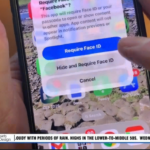
Press and hold any app icon, then tap Require Face ID.
Even if someone unlocks your phone, they won’t be able to open that app without your face.
This is great for social media, banking apps, or anything you’d rather keep private.
4. Silence Spam Calls Automatically
If your phone won’t stop ringing with scam calls, this setting is a lifesaver.
Go to Settings > Apps > Phone > Screen Unknown Callers and set it to Silence.
Unknown callers won’t ring your phone. They’ll go straight to voicemail and still appear in your
recent calls list. When this is turned on, most of what shows up there ends up being spam
anyway.
5. Let Your Phone Work for You, Not Against You
This last one isn’t a single switch; it’s a mindset. If something about your iPhone annoys you,
there’s almost always a setting that fixes it. Apple just doesn’t put those fixes front and center.
The bottom line:
Don’t replace your phone because it’s frustrating.
Fix it.
These five changes take less than five minutes, and they make your iPhone feel noticeably
smarter, quieter, and more secure.