What The Tech: Can you prepare for tech outages?
BY JAMEY TUCKER, Consumer Tech Reporter
Recent problems affecting Microsoft, the FAA and major banks are reminders that technology
doesn’t always work when we need it. A few simple precautions can help protect your money,
files and ability to communicate.
It seems like everything is breaking lately.
First, Microsoft experienced a major outage that disrupted Outlook, Teams and other services.
Then a technical failure involving the Federal Aviation Administration grounded flights across the
country. Days later, customers of major banks experienced problems with transactions and
account access.
Are these outages connected? So far, there’s no evidence of that. Officials say the recent problems were not caused by coordinated cyberattacks. Instead, technical failures, software problems and aging infrastructure have been identified as contributing factors.
The incidents raise a bigger question: Are we becoming too dependent on technology that can
suddenly stop working?
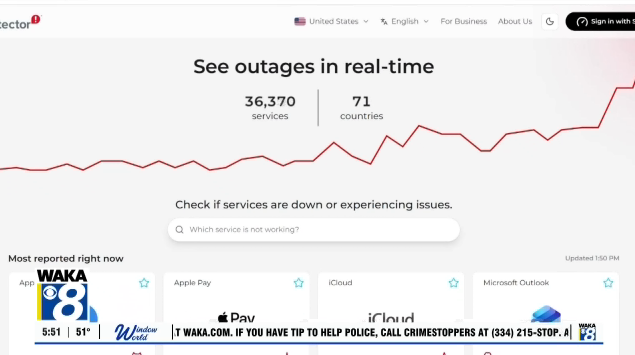
Websites such as Downdetector track problems with thousands of online services. On any given
day, you’ll find reports of trouble with banking apps, cellphone networks, streaming services and
other websites.
We can’t prevent these outages, and there’s often little we can do except wait for companies to
fix them. But there are several ways to prepare for the next disruption.
1. Make sure your important computer files are available offline
Millions of people and businesses rely on cloud storage services such as Microsoft OneDrive, Google Drive and Apple’s iCloud.
The convenience is obvious. You can access your files from almost anywhere. But that
convenience can become a problem if the service goes down or you lose your internet
connection.
If you use Microsoft’s OneDrive on a Windows computer, open File Explorer and look at the
icons next to your files.
A blue cloud icon means the file is stored online and may not be available without an internet
connection.
To make sure you can access an important file offline:
1. Right-click the file or folder.
2. Select Always keep on this device.3. Wait for the file to download. A green circle with a white check mark indicates that it is saved locally.
For additional protection, copy your most important files to an external hard drive or USB drive.
Keep that backup disconnected when you’re not using it.
2. Have a credit card from another bank
Imagine being away from home when your bank experiences a major computer failure.
Your debit card might stop working, or you might be unable to make electronic payments.
One way to prepare is to have a credit card issued by a different bank. If one institution
experiences problems, the other may still be operating normally.
This is particularly important when traveling, when you might need to pay for a hotel, rental car,
gas or meals.
3. Download copies of your bank statements
If you receive bank statements electronically, don’t assume you’ll always be able to retrieve
them when needed.
Visit your bank’s website and download recent statements as PDF files.
These documents provide a record of your balances and transactions as of the statement dates.
They won’t necessarily reflect your current balance, but they may be useful if you need to review
transactions or resolve discrepancies after an outage.
Because bank statements contain sensitive information, store them in an encrypted or otherwise
secure location.
4. Print your airline boarding passes
Airlines encourage passengers to use their apps for boarding passes, flight updates and
reservations.
That’s convenient until an airline’s computer systems experience problems.
Before heading to the airport, download your boarding pass, take a screenshot of your flight
confirmation and consider printing a paper copy.
A printed boarding pass won’t help if an FAA outage grounds aircraft. But it may save you some
frustration if an airline app or its online systems become temporarily unavailable.
5. Keep some emergency cash
We’re becoming a cashless society, but electronic payments depend on computer networks
functioning properly.
If banking systems, ATMs or credit card processing networks go down, having cash could make
a difference.
You don’t need to withdraw your life savings. Keeping a modest emergency reserve, perhaps
$100 to $200 depending on your needs, could help you pay for groceries, gasoline or other
necessities during a temporary disruption.
6. Turn on Wi-Fi Calling on your phone
Cellphone carriers have experienced major outages over the years, sometimes leaving
customers unable to make calls or send texts.
One feature that can help is Wi-Fi Calling.
If your cellular network goes down but you still have a working Wi-Fi connection, you may be
able to make and receive phone calls using your regular phone number.
On an iPhone, look for Wi-Fi Calling under Settings, Cellular, then Wi-Fi Calling. On Android
phones, the option is generally found in the phone or network settings, although the exact
location varies by manufacturer and carrier.
You’ll need a supported phone and cellular plan, and Wi-Fi Calling won’t help if your internet
connection is also unavailable.
It’s worth enabling and testing before an emergency.
Why are so many technology services going down?
Software failures, equipment problems, aging infrastructure and the complexity of interconnected computer systems can all contribute to outages.
The recent disruptions are not necessarily linked, and there’s no conclusive evidence that
outages overall are becoming more frequent.
But the consequences can be enormous when millions of people depend on the same systems. The reality is that even the largest technology companies, airlines, banks and communications providers are vulnerable to technical failures.
We can’t control when those systems fail or how long repairs will take.
What we can control is how prepared we are when technology suddenly stops working.